
前回のおさらい
前回はDriveAPIでPDFファイルを読み込み、OCRでテキストを取得しました。
通知メッセージもつくったのであとはチャットに送るだけです。

Drive.files.copyメソッドを使ってPDFのテキストを読み込んでGoogleドキュメントをつくりました。
const document = Drive.Files.copy({ title: 'テスト' }, invoiceFile.getId(), { ocr: true })
Googleドキュメントから本文のテキストを読み取って、必要部分だけ正規表現で抜き出しました。
const documentApp = DocumentApp
const documentFile = documentApp.openById(document.id)
const documentBody = documentFile.getBody()
const text = documentBody.getText()
const invoiceDate = text.match(/(\d{4}年\d{1,2}月分)/)[1]
テンプレートリテラルを使って通知メッセージをつくりました。
const chatMessage = `${companyName}の${invoiceDate}請求書が届きました。\n${taxNotIncluded} ${taxIncluded}\n以下のURLからダウンロードしてください。\n${invoiceUrl}`
今回は作成した通知メッセージをchatworkで通知します。
chatworkにはchatworkAPIが用意されていまして、それを使うことでGASからchatworkにメッセージを送ることが可能です。
chatworkにメッセージを投稿するための関数をつくる
今、コードはこんなふうになっています。
const searchGmail = () => {
  const gmail = GmailApp
  const searchedMail = gmail.search('from:株式会社 インボイス送信元 subject: 【請求書】送付のご案内 is:unread')
  const messages = searchedMail.map(thread => {
    return thread.getMessages()
  })
  const message = messages[0][0]

  // 本文から税抜請求額と税込請求額を取得
  const messageBody = message.getPlainBody()
  const taxNotIncluded = messageBody.match(/税抜請求額.*$/m)[0]
  const taxIncluded = messageBody.match(/税込請求額.*$/m)[0]

  // 添付ファイルの取得とドライブへの保存
  const attachments = message.getAttachments()
  const drive = DriveApp
  const folder = drive.getFolderById('フォルダIDが入ります')
  const invoiceFile = folder.createFile(attachments[0])

  // チャット通知用メッセージの材料を集める
  const fromName = message.getFrom()
  const companyName = fromName.match(/"([^"]*)"/)[1]
  const invoiceUrl = invoiceFile.getDownloadUrl()

  // PDFからOCRでテキストを取り出す
  const document = Drive.Files.copy({ title: 'テスト' }, invoiceFile.getId(), { ocr: true })
  const documentApp = DocumentApp
  const documentFile = documentApp.openById(document.id)
  const documentBody = documentFile.getBody()
  const text = documentBody.getText()
  const invoiceDate = text.match(/(\d{4}年\d{1,2}月分)/)[1]
  invoiceFile.setName(`${invoiceDate} ${companyName} 請求書`)

  // 通知用のメッセージをつくる ※位置を上から移動
  const chatMessage = `${companyName}の${invoiceDate}請求書が届きました。\n${taxNotIncluded} ${taxIncluded}\n以下のURLからダウンロードしてください。\n${invoiceUrl}`
  console.log(chatMessage)

  // 不要なGoogleドキュメントファイルを削除する
  const removingFile = drive.getFileById(document.id)
  removingFile.setTrashed(true)
}
一つの関数にしてはだいぶ長くなってきましたのでchatworkに投稿するための関数を別でつくろうと思います。
GASからchatworkにメッセージを送るためにはAPIを利用する必要があります。
chatworkにメッセージを投稿するコードはこのようになります。※詳細は上記の記事を参照
const sendChatwork = () => {
  // endpointの定義
  const roomId = 'ルームIDが入ります'
  const endpoint = `https://api.chatwork.com/v2/rooms/${roomId}/messages`

  // APIトークン
  const token = 'APIトークンが入ります'

  // リクエストボディ
  const message = 'チャットワークのテストだよーん'

  // リクエストボディにはメッセージのみを格納
  const payload = {
    body: message,
  }

  // ヘッダーにトークンをセット
  const headers = {
    'x-chatworktoken': token,
  }

  // optionsにheadersとpayload(リクエストボディ)をセット
  const options = {
    headers, payload
  }

  const response = UrlFetchApp.fetch(endpoint, options)
  console.log(response.getResponseCode())
}
ただし、この関数はメッセージが「チャットワークのテストだよーん」と固定になっています。
ですのでsearchGmail(今までつくってきた関数)から、sendChatwork(chatworkにメッセージを投稿するための関数)にメッセージをわたさないといけないんですね。
sendChatwork関数が引数を受け取れるようにして、searchGmail関数からsendChatwork関数を呼び出しつつメッセージをわたします。
sendChatwork関数が引数を受け取れるようにする
const sendChatwork = chatMessage => { // 1行目 引数としてmessageを設定
  // 中略
  const message = chatMessage // 10行目 「チャットワークのテストだよーん」の代わりに受け取ったchatMessage引数を代入する
searchGmail関数からsendChatwork関数を呼び出す
const searchGmail = () => {
  // 中略

  // 通知用のメッセージをつくる ※位置を上から移動
  const chatMessage = `${companyName}の${invoiceDate}請求書が届きました。\n${taxNotIncluded} ${taxIncluded}\n以下のURLからダウンロードしてください。\n${invoiceUrl}`

  // 不要なGoogleドキュメントファイルを削除する
  const removingFile = drive.getFileById(document.id)
  removingFile.setTrashed(true)

  sendChatwork(chatMessage) // sendChatwork関数を呼び出し、chatMessage変数を渡している
}
さて結果はどうでしょうか???
chatwork画面
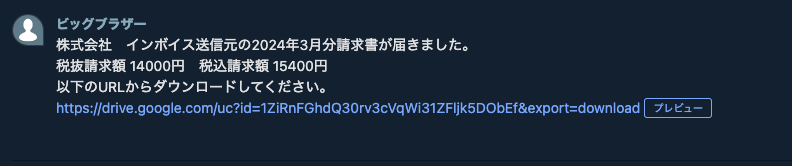
うまく届いてますね。
これでchatworkもslackもメッセージを送ることができました。
おっと、ここで経理からもう一つ要望が入ってきました。
毎月の税抜請求額と税込請求額をスプレッドシートに転記してほしいそうです。
だいじょぶ、ちょうかんたん。
バイバイマイラブ